Hello again. OK..just to share a little bit about Unifi as TM has already changed their wifi router from D-Link Dir-615 to Riger RG TMRND Gen1.0 recently in some installations. So the same issue here which is the lack of security configured by default.
As I mentioned earlier, by default, the wireless router was configured with default settings and most of the security settings was not configured and not secured. Those unconfigured Unifi wifi router will be a wonderful place for people like me to make it as a ‘playground’ hotspots. heheheh!!!!!
So, let me share a little bit on how to make your Unifi Riger RG TMRND Gen1.0 wifi router secure and to make it harder for those “unwanted guest”.
BEFORE I PROCEED, DO THIS AT YOUR OWN RISK OK!!!! DON’T BLAME ME IF THERE IS ANY FAILURE HAPPENED TO YOU!!!!!
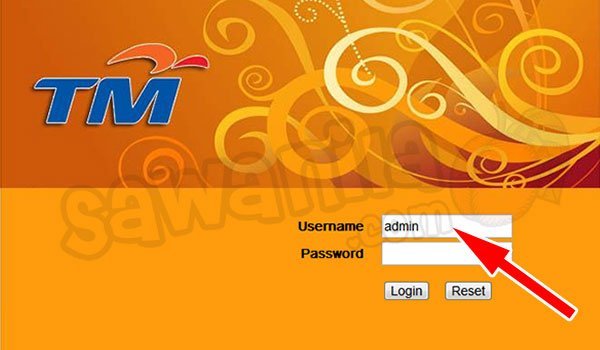
By using your browser, go to http://192.168.0.1 (by default) to the router administration page. Key-in the Username as admin and just leave it blank for the password. In other words, there is no password needed to login into the administration page.
 Figure 1
1. Change the ‘admin’ password
By default the wifi router comes with admin id and no password configured… so.. sendiri mau ingat la when your wifi router without admin password. You can configure it at Management tab >> User Management then click Edit button.
 Figure 2
2. Change the SSID Name
by default the SSID name is <your-unifi-id>@unifi, so people knews that it is a default setting by Unifi and can play around with it. You can change the SSID name at Wireless tab >> SSID Configuration and click Edit Button. Key-in your desire SSID name as shown in Figure 3.
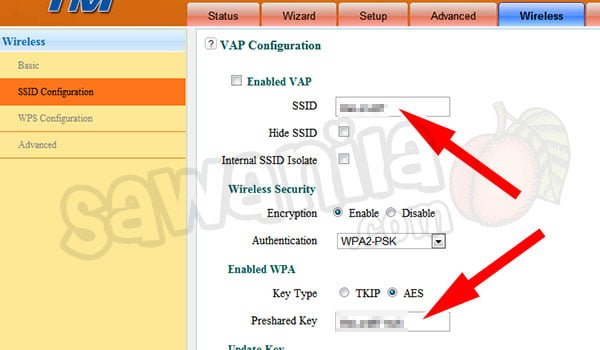 Figure 3
3. Change the Wifi Security Key
By default, it was not configured; and if configured, it used the 8 digit numeric pin only which can be easily being cracked by people like me. To do this, from the Step 2 and Figure-3 above, make sure the Authentication mode is WPA2-PSK and key in yourPreshared Key with a strong alphanumeric key. *By changing this Wifi Security Key – all your wifi clients (PC, Notebook, Ipad, PDA…) need to reconnect and use the new WPA/WPA2 key.
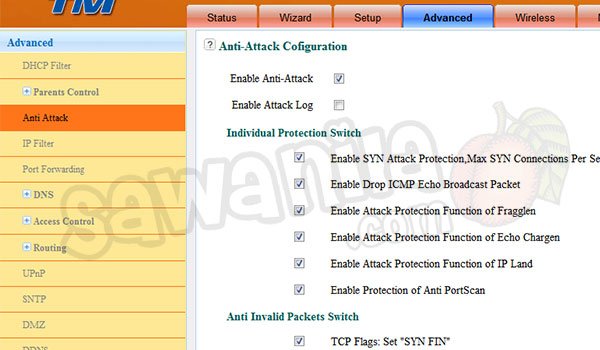 Figure-4
4. Enable Anti Attack Mode
In some cases, this feature are already enabled but as a precaution and confirm the Anti Attack Mode is activated you can go to Advance tab >> Anti Attack. Just enable by tick all the boxes except Enable Attack Log.
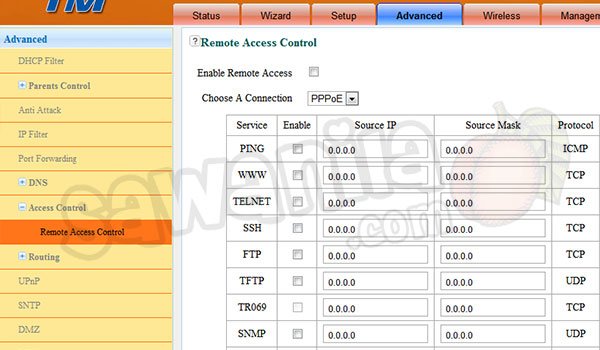 Figure 5
5. Disable Remote Access
To make sure that nobody can access your wifi router, just disable the Remote Access feature. You can do this at Advance tab >> Remote Access Control. Just untick all for total block. If you want to enable ping, advice to enable only for local ping only which is source ip 192.168.0.0 with source mask 255.255.255.0 only…..
 Figure 6
6. Change Wireless Bandwidth Frequency to 20MHz
By default, it was configured with 20/40Mhz. This what I’ve discovered. If the bandwidth frequency is 20/40Mhz, the wifi signal is weak and the distance shorter compared if you set the bandwidth to 20Mhz only. And one more thing, some of the wifi devices such as Apple devices (Ipad, Imac, Ipod.. bla bla bla) are more stable running with 20Mhz only. You can do this at Wireless tab >>Basic.
Extra info
Adding Wifi Repeater – you can use a wifi repeater to extend your wifi coverage. In most 2 storey houses, the best way to cover all area by using a wifi repeater. There are many wifi repeater that compatible with Unifi Riger RG TMRND. I’m using Aztech Wall-Plugged Wireless-N Extender WL556E to extend my home wifi.
Replacing the Riger RG TMRND
If you don’t like Riger RG TMRND Unifi Router provided by TM, you can replace it with a few selected models and need to Flash the router with the Custom Firmware. Ask the sales person from Lowyat or elsewhere about the Unifi Router Custom Firmware or else, you can say bye-bye for your Unifi IPTV.
My advice, if you want to replace the Unifi router, get the best one which have the gigabit ethernet and N+ 300Mbps wifi or better. The models that are compatible with Unifi are:
- Asus – RT-N13U <- Highly Recommended (cheap, build in BT downloader)
- Asus – RT-N56U <- for those got money… don’t regret to use this one.. triple highly recommended….
- Asus – RT-N16
- TP-Link – TL-WR841ND
- TP-Link – TD-W8960N
- TP-Link – TL-WR1043ND <- Recommended